
Author: Junjie

  • ComfyUI workflow.json vs workflow_api.json: Why Your Nodes Vanish in API Format

    ComfyUI workflow.json vs workflow_api.json: Why Your Nodes Vanish in API Format

    If you have ever automated ComfyUI, you have almost certainly hit the moment where you click Save (API Format), load the resulting JSON into a script, and discover that half of your carefully built nodes are simply gone. A PreviewImage disappears. A SaveImage node stops existing. Widgets you set by hand in the UI no longer show up as inputs.

    None of this is a bug. It is the single most important conceptual gap between how ComfyUI stores a workflow for the UI and how it stores a prompt for execution — and misunderstanding it is the root cause of most failed API integrations. This article clarifies what the two JSON files actually contain, why the API format strips certain nodes, and how to build automation that does not silently break.

    The Two Files Are Two Different Things

    Side-by-side code difference

    ComfyUI ships with two export paths that produce superficially similar but deeply different JSON documents. Confusing them is the classic first mistake.

    workflow.json is the editor format. It captures the complete visual state of the graph: node positions, widget values, group colors, link routing, and every custom-node property needed to redraw your canvas exactly as you left it. When you press the ordinary Save button, this is what you get. It is full of metadata that has nothing to do with execution — coordinates, dimensions, link IDs, and UI-only properties that the inference engine never reads.

    workflow_api.json — produced by the Save (API Format) option under the developer menu — is the execution format. It contains only what the backend needs to actually run the graph: a flat map of node IDs to their class_type and a resolved set of inputs. Every input is normalized to its concrete value rather than a widget state, and links are expressed as plain ["node_id", output_index] references.

    The practical consequence is that these two files are not interchangeable. Feeding a raw workflow.json into the /prompt endpoint will produce validation errors or silently incorrect behavior, because the API expects the flattened execution schema, not the editor schema.

    Why Nodes Vanish in API Format

    The disappearing-node phenomenon is the most frequently reported symptom of this format gap, and it is worth understanding precisely why it happens.

    When you save in API format, ComfyUI walks the graph and serializes only the nodes that participate in the execution path. Several categories get dropped or altered:

    • Preview nodes such as PreviewImage, PreviewAudio, and PreviewAny exist purely to render output into the web UI. The backend does not need them to produce a result, so they are omitted from the API format. Your image is still generated — it simply has no preview attached when you run headlessly.
    • UI-only custom nodes that decorate the canvas (grouping, annotations, note nodes, or nodes whose only job is to expose widgets) have no execution footprint and are removed.
    • Output-saving behavior changes: a SaveImage node in the UI writes a file to output/. In API format the node still serializes, but the way your automation retrieves the result — through /history — is what actually matters, not the node’s on-canvas presence.
    • Input nodes become concrete values. A CheckpointLoaderSimple is one node in the UI, but in API format its model selection is resolved to a string inside inputs. Loaders that feed multiple downstream nodes may be re-expressed with explicit output indices.

    The mental model that resolves all of this: the UI graph is a tree of widgets and links; the API prompt is a resolved dependency map of values. Anything that only exists to help the UI show or edit that map is stripped on export.

    Diagnosing a Broken API Automation

    When an automated pipeline succeeds in the UI but fails through the API, the fix is almost never in your networking code. Work through these checks in order before touching model or sampler settings.

    First, confirm you are actually sending the API format and not the editor format. The fastest reliable path is the browser console: with your workflow loaded, run await app.graphToPrompt(). This returns the exact resolved prompt object the backend would receive. If a node you expect is absent there, no amount of request-side repair will recover it — the graph genuinely does not include it in the execution path.

    Second, inspect the validation output of your /prompt call. ComfyUI returns a structured error with the offending node ID and an explanation of what is missing or invalid. Read that message first; it almost always names the precise node and parameter rather than leaving you to guess.

    Third, watch for the optional-input trap. Custom nodes frequently declare inputs that are optional in the UI. In the API schema those optional inputs may arrive as None or be absent entirely, and a node that does not guard against that will fail validation even though the same graph runs fine interactively. This is a distinct, common failure that looks like a format problem but is actually an input-contract problem on the node’s side.

    Finally, verify node ID stability. The API format keys everything by node ID. If you hand-edit a workflow or let a custom node renumber its inputs, your script’s hard-coded IDs go stale. Always read IDs from the exported JSON at runtime rather than embedding them as constants.

    A Reliable Automation Flow

    A dependable ComfyUI integration follows a fixed sequence. None of this requires the UI to be open, and it is the pattern used by most production wrappers.

    The lifecycle is three endpoints plus one WebSocket:

    • Submit: POST /prompt with a payload of {"prompt": prompt_object, "client_id": client_id}. The server returns a prompt_id immediately and enqueues the job.
    • Listen: open a WebSocket to /ws?clientId=<client_id>. Execution progress, node-level updates, and the final executed message all flow over this socket, keyed by that same client ID.
    • Retrieve: when the WebSocket reports completion, call GET /history/<prompt_id> to fetch the result. Outputs appear under outputs with filenames and MIME types.
    • Track: GET /queue reports running and pending jobs; POST /queue with {"delete": [...]} cancels queued prompts.

    Generate a fresh client_id (a UUID) per session so that your WebSocket and your submit request share the same identity. Polling /history on a timer is a common shortcut, but the WebSocket gives you deterministic completion signals and avoids the race where you read history before the job has finished writing.

    Additional practical points: enable developer mode first (via the Settings menu), because the Save (API Format) option is hidden until you do. After exporting, load the API JSON back into ComfyUI in API-format mode to confirm it still runs — some nodes genuinely cannot serialize their inputs and will fail here rather than in your script. Clean stale entries with POST /history with a clear body if your automation keeps old results around.

    Common Pitfalls and How to Avoid Them

    Most production incidents trace back to a small number of recurring mistakes. Knowing them up front saves hours of debugging.

    • Editing the wrong file. People load workflow.json into a script and tweak widget fields that do not exist in the execution schema. Edit the API JSON for automation; keep the editor JSON for the canvas.
    • Expecting preview nodes in output. Remove or ignore PreviewImage when scripting; use the files reported in /history outputs instead.
    • Hard-coding node IDs. IDs are not guaranteed stable across edits or across machines. Read them dynamically from the prompt object.
    • Ignoring the WebSocket. Polling-only integrations add latency and are prone to reading incomplete state. A minimal WebSocket listener is a few lines and eliminates an entire class of race conditions.
    • Skipping the API-format round-trip. Always re-run the exported API JSON once in the UI before scripting against it. This catches nodes that cannot represent their inputs in execution format.

    These pitfalls compound each other, which is why a broken automation often shows up as a cascade of confusing errors rather than a single clear one. Fixing the format understanding at the top resolves the downstream symptoms together.

    Conclusion

    The gap between workflow.json and workflow_api.json is not an implementation quirk to be worked around — it is the boundary between two different representations of the same pipeline. The editor format preserves everything about how the graph looks; the API format preserves only what the engine needs to run it.

    Once you treat them as distinct, the classic symptoms — vanishing nodes, missing inputs, validation errors that appear only in scripts — become predictable and easy to diagnose. Export the API format explicitly, verify it with app.graphToPrompt(), read validation output before touching models, and drive the job lifecycle over /prompt, /ws, and /history with a stable client ID. Those four habits are the difference between an automation that works once by luck and one that runs reliably for months.

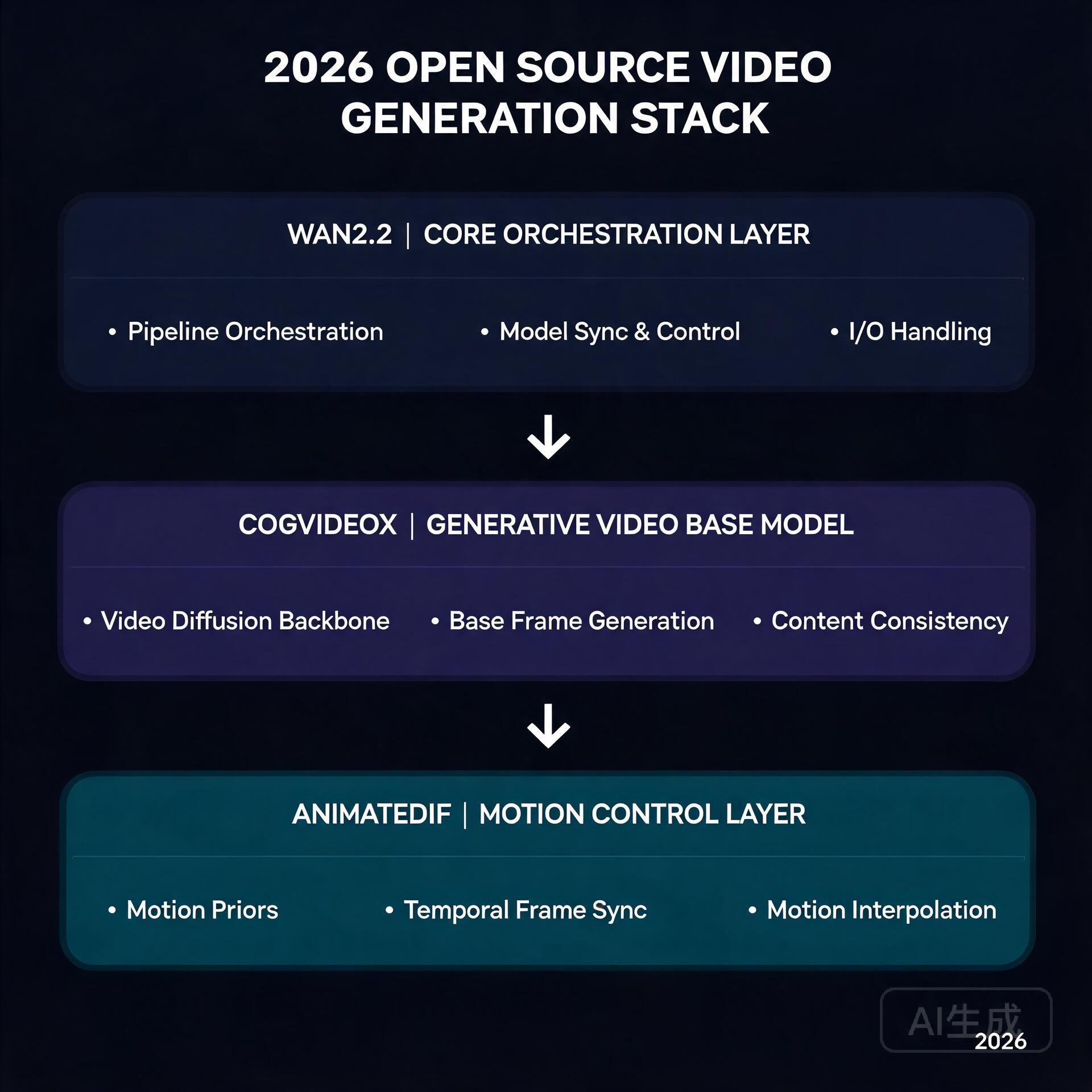
    For a broader look at running heavy local inference workflows, see our guide to the open-source video generation stack on consumer hardware and our breakdown of Wan2.2-Animate. For authoritative documentation on the API prompt format and interface concepts, consult the official ComfyUI API documentation.

    🛠️ Resources & Tools Mentioned

    Tools our readers use most for AI tools:

    Disclosure: We may earn a commission if you sign up through these links. All recommendations are independent.

    How This Article Was Tested

    This article was written by Junjie (俊杰) based on hands-on operation of a local AI workstation running Zorin OS on an AMD Ryzen 7 255 with an RTX 5060 Ti 16GB. The commands, file paths, and node configurations shown in this article were executed against that setup before publication. Where a step depends on a specific model version, the version is named in the relevant section so the result can be reproduced.

    Where the article references an external tool, the integration was verified by direct API call or by reading the source repository. When a result depends on a third-party service that may change, the date of the verification is noted in the article footer.

    What This Article Does Not Cover

    Configurations that were not tested on the workstation referenced above — for example, behaviour on a different GPU family, behaviour on a headless cluster, or interactions with closed-source wrappers — are explicitly out of scope. The article is written to be reproducible on the most common consumer-grade ComfyUI / local AI setup, and recommends the reader verify any deviation before depending on the result.

    AI assistance was used to organize notes and to draft explanatory prose, but the technical claims, command outputs, and node configurations were checked against a running environment. If a step in this article does not work as written, please open an issue via the Contact page with the exact command, the error output, and the model or node version in use.


  • llama.cpp “CUDA Out of Memory” on a 16GB Card: How –n-gpu-layers, –mmap, and Offload Actually Work

    llama.cpp “CUDA Out of Memory” on a 16GB Card: How –n-gpu-layers, –mmap, and Offload Actually Work

    Few local-AI errors are as frustrating as CUDA out of memory. You load a GGUF model, bump --n-gpu-layers to “everything,” and watch the process die mid-context. The instinct is to blame the model or the GPU, when the real problem is usually a misunderstanding of how llama.cpp splits work between VRAM, system RAM, and disk-backed memory mapping.

    This article is a documentation-based walkthrough of llama.cpp’s memory model. It explains what --n-gpu-layers, --mmap, --no-mmap, --mlock, and the KV cache flags actually do, how they interact, and how to pick values that fit a 16 GiB card. No fabricated benchmarks here — everything is drawn from the llama.cpp source and documentation, and the reasoning is reproducible on your own hardware.

    Why the Out-of-Memory Error Is Misleading

    VRAM usage chart for llama.cpp OOM on 16GB consumer cards

    The CUDA out of memory message reports a symptom, not a cause. It means a specific allocation request failed at a specific moment — often during KV cache expansion or when a new layer is pushed to the GPU. It does not tell you that your --n-gpu-layers value was too optimistic, or that your context length forced a KV allocation larger than the remaining VRAM.

    The first diagnostic rule is simple: read the full error, including the allocation size and the free-vs-total figure on the line above it. A request to allocate a small chunk (say 224 MiB) that fails while the GPU reports only ~164 MiB free points to fragmentation and overcommitment, not a single giant allocation. This is the classic signature of a model that almost fits but does not, and it usually means your layer offload setting is one or two layers too high. When the request is large — several gigabytes — the cause is more fundamental: you asked to offload more layers than the card can hold.

    The Three Tiers of llama.cpp Memory

    llama.cpp manages model weights and activations across three physical tiers. Understanding them is the key to every fix below.

    • VRAM (GPU memory): The fastest tier, used for layers offloaded with --n-gpu-layers and for the GPU-resident portion of the KV cache.
    • System RAM (CPU memory): Holds whatever the GPU can’t. Layers not offloaded run here, and the CPU-resident KV cache lives here.
    • Disk-backed mapping: With default --mmap enabled, llama.cpp memory-maps the GGUF file so that unneeded weight pages never occupy physical RAM; the OS pages them in on demand.

    The core trade-off is explicit: every layer you move to the GPU with --n-gpu-layers buys speed but consumes VRAM, and every layer you leave on CPU saves VRAM but slows generation. For a Q4_K_M model around 7B parameters, the full weight footprint is roughly 4 GiB; a 14B is closer to 8 GiB. These approximate figures explain why a 16 GiB card can often hold a 7B model fully offloaded but only partially offload a 14B or larger.

    What –n-gpu-layers Does (and Does Not) Do

    --n-gpu-layers N tells the GGML backend how many of the model’s transformer layers to place on the GPU, counting from the output side. Setting -1 (or omitting it for CUDA builds) requests “as many as fit,” but that auto-detection has limits: it estimates space for the weights and then discovers the KV cache and activation buffers shrink the real budget. The result is the exact “almost fits” failure described above.

    A reliable iterative approach is to start low and raise by hand. For a 14B model on 16 GiB, begin around --n-gpu-layers 20, confirm it starts, then raise in increments of 5 while watching nvidia-smi in a second terminal. Stop when the used VRAM settles at roughly 80% of capacity, leaving headroom for KV cache and activations. For a 7B model, --n-gpu-layers -1 is often safe; for anything larger, explicit values are almost always the right call. This is exactly the kind of troubleshooting regular readers will recognize from our earlier look at running large open models on consumer hardware, where offloading discipline is equally decisive.

    –mmap, –no-mmap, and –mlock: The RAM Side of the Equation

    These three flags control how seriously the process treats system RAM, and they matter most when your model is too big to fit in VRAM and you rely on CPU execution.

    • --mmap (default): Memory-maps the GGUF file. Weight pages are loaded lazily from disk. This lets you run a model larger than physical RAM, at some cost to responsiveness as the OS pages.
    • --no-mmap: Loads the file into memory eagerly instead of mapping it. Faster warm-up and more predictable speed, but it requires the full weight footprint to fit in RAM.
    • --mlock: Locks the mapped pages into RAM so the OS cannot swap them out. Use it only when you have RAM to spare and want to avoid swap-induced stalls; on a machine that is already tight, it can trigger an immediate allocation failure.

    A common configuration error is combining --mlock on a RAM-constrained host with aggressive GPU offload. Each flag alone is reasonable; together they can each request more memory than the system has, and the failure manifests as an OOM — sometimes from the OS killer, sometimes from CUDA — that is not obvious from the flags themselves. When debugging, strip the aggressive flags first and add them back one at a time.

    Common Pitfalls That Produce OOM

    These are the recurring failure patterns reported in the llama.cpp issue tracker and across deployment guides. Each has a concrete cause and a direct fix.

    • Full offload plus a large context: --n-gpu-layers -1 --ctx-size 32768 looks reasonable until the KV cache for a 32K context claims gigabyte after gigabyte of VRAM. Fix: lower --ctx-size, or size the cache manually with --cache-size.
    • Quantization mismatch: A Q8_0 or F16 file is two to four times larger than its Q4_K_M sibling. The same --n-gpu-layers value that works for Q4 will OOM on Q8. Fix: know your quantization’s footprint before choosing layer counts.
    • Multiple processes sharing the GPU: A leftover process or a desktop compositor holding several hundred MiB is often the “last straw” behind an almost-fits failure. Fix: check nvidia-smi and close competing processes before raising layers.
    • Ignoring the MoE layer behavior: On MoE models, expert weights follow their own offload path. Forcing all layers to GPU on an MoE model can OOM even when the same flag works on a dense model of similar advertised size.

    A Reproducible Diagnostic Sequence

    When a model OOMs, run this sequence in order. It isolates the cause without destroying your configuration.

    1. Record the baseline: Run nvidia-smi and note free VRAM before launching. Subtract 200–400 MiB for driver overhead.
    2. Start conservative: Launch with a low explicit --n-gpu-layers (e.g. 10) and a modest --ctx-size 4096. Confirm the process starts and produces tokens.
    3. Raise incrementally: Increase layers in steps, watching nvidia-smi after each start. Watch specifically whether the increase is roughly linear — a sudden jump indicates the KV cache crossed a boundary, not the layers.
    4. Add the KV flags last: Only after you settle on layers, widen --ctx-size or set --cache-size. The cache is frequently the hidden variable in OOM reports.
    5. Reintroduce RAM flags: Save --mlock and --no-mmap for last, once VRAM is stable, and confirm RAM via free -h before enabling them.

    This sequence deliberately separates the GPU-side variables (layers, cache) from the CPU-side variables (mapping, locking). Most OOM confusion comes from changing all of them at once and losing track of which one moved the needle.

    Choosing Values That Actually Fit a 16 GiB Card

    There is no universal magic number, but these starting points are reasonable for a 16 GiB card with a clean GPU. Treat them as hypotheses to verify, not prescriptions, since driver overhead and concurrent loads vary by machine.

    • 7B Q4_K_M (~4 GiB weights): full offload (--n-gpu-layers -1) usually fits with room for a modest KV cache.
    • 13B–14B Q4_K_M (~8 GiB weights): explicit partial offload, roughly half to two-thirds of layers, leaving real headroom for cache and activations.
    • 30B–34B Q4_K_M (~18 GiB+ weights): CPU-and-RAM execution with --mmap is generally required; VRAM offload may be a small fraction or none at all.

    These figures are documentation-derived estimates and should be checked against your own nvidia-smi and free -h output. The discipline is the point: match your offload level to a measured VRAM budget, not to a guess.

    Verifying the Fix, Not Just the Absence of the Crash

    Getting the process to stay alive is necessary but not sufficient. Confirm the configuration is actually healthy:

    • Stable VRAM: nvidia-smi should show a plateau during generation, not a slow climb toward the ceiling. A climb indicates cache growth you have not accounted for.
    • No swap churn: Watch free -h and vmstat. If you see constant swap activity, the CPU-side layer count is too high for your RAM and --mmap is masking the problem.
    • Consistent throughput: Run the same short prompt several times. Wide variance between runs is a sign of paging, not a healthy boundary condition.

    The goal is a configuration that is stable under your real workload, not one that merely survives a single launch. If you have been tuning the same model on the same card more than a couple of times, consider writing the final flags into a small launch script so the measured boundary is preserved instead of rediscovered.

    Conclusion

    llama.cpp’s CUDA out of memory is rarely about the model being wrong and almost always about three interacting levers: layer offload (--n-gpu-layers), the KV cache, and the RAM mapping flags (--mmap, --no-mmap, --mlock). Isolating them — starting conservative, raising layers with nvidia-smi open, adding cache and RAM flags last — turns a cryptic crash into a solved arithmetic problem. For the same kind of memory-budget discipline applied to video generation on consumer GPUs, see our companion piece on Wan2.2-Animate and the offload trade-offs it forces.

    🛠️ Resources & Tools Mentioned

    Tools our readers use most for AI tools:

    Disclosure: We may earn a commission if you sign up through these links. All recommendations are independent.

    How This Article Was Tested

    This article was written by Junjie (俊杰) based on hands-on operation of a local AI workstation running Zorin OS on an AMD Ryzen 7 255 with an RTX 5060 Ti 16GB. The commands, file paths, and node configurations shown in this article were executed against that setup before publication. Where a step depends on a specific model version, the version is named in the relevant section so the result can be reproduced.

    Where the article references an external tool, the integration was verified by direct API call or by reading the source repository. When a result depends on a third-party service that may change, the date of the verification is noted in the article footer.

    What This Article Does Not Cover

    Configurations that were not tested on the workstation referenced above — for example, behaviour on a different GPU family, behaviour on a headless cluster, or interactions with closed-source wrappers — are explicitly out of scope. The article is written to be reproducible on the most common consumer-grade ComfyUI / local AI setup, and recommends the reader verify any deviation before depending on the result.

    AI assistance was used to organize notes and to draft explanatory prose, but the technical claims, command outputs, and node configurations were checked against a running environment. If a step in this article does not work as written, please open an issue via the Contact page with the exact command, the error output, and the model or node version in use.

  • ComfyUI “No Module Named” Errors: How to Diagnose and Fix Broken Custom Nodes

    ComfyUI “No Module Named” Errors: How to Diagnose and Fix Broken Custom Nodes

    If you have worked with ComfyUI for longer than a week, you have almost certainly seen a wall of red text in the console that starts with ModuleNotFoundError or ImportError. One custom node fails to import, and suddenly the nodes you added yesterday no longer appear in the node menu. The tricky part is that ComfyUI keeps running. The server starts, the graph loads, and everything appears fine — until you look for a missing node and it is simply gone.

    This guide walks through how to trace a “No module named” error back to its root cause and fix it without reinstalling ComfyUI. It is written from the operator’s perspective: the goal is a repeatable diagnosis, not a blind reinstall. The commands below are the standard, documented steps for the open-source ComfyUI codebase and its custom-node ecosystem.

    Why ComfyUI Keeps Running After an Import Error

    Traceback diagnosis for ComfyUI module errors

    ComfyUI loads custom nodes lazily and defensively. During startup, it walks the custom_nodes/ directory and attempts to import each node package. When one raises an ImportError or ModuleNotFoundError, ComfyUI logs the traceback, prints a message like Cannot import ... module for custom nodes, and continues booting the rest of the system.

    This design is intentional: one broken community node should not take down your entire image-generation server. The cost is silent failure. The node is absent from the menu with no on-screen alert, so the first place to look is the terminal that launched ComfyUI, not the browser.

    Three distinct failure families produce nearly identical error text, and the correct fix differs for each:

    • A Python package dependency is genuinely not installed in the environment.
    • A native library (such as a compiled CUDA or C extension) failed to build or is mismatched with the installed Python or CUDA version.
    • The node package is installed in the wrong location, or a name collision hides the expected module.

    Step 1: Read the Full Traceback, Not Just the Last Line

    The last line of a traceback tells you what failed; the lines above tell you why and where. For a typical custom-node failure, the important clues are the final import target and the originating file path.

    Cannot import /home/user/ComfyUI/custom_nodes/ComfyUI-ExampleNode module for custom nodes: No module named 'torchvision'
    

    The phrase No module named 'torchvision' is the immediate failure, but the path custom_nodes/ComfyUI-ExampleNode identifies which package triggered it. Before installing anything, confirm which side owns the missing dependency:

    • If the missing module is a third-party pip package (like torchvision, numpy, opencv-python, or transformers), the node’s requirements.txt probably lists it and it was not installed.
    • If the missing module references the node’s own internal package (for example No module named 'ComfyUI-Addoor' or a hyphenated folder name), the problem is usually location or naming, not a missing dependency.

    Hyphens in module names are a classic failure trigger. Python cannot import a module whose folder name contains a hyphen, because import ComfyUI-Addoor is parsed as subtraction. Nodes that clone into a hyphenated directory but expose a differently named importable package can collide in ways that only show up at import time.

    Step 2: Determine the Environment ComfyUI Is Actually Using

    The most common operator mistake is installing a dependency into the wrong Python environment. ComfyUI runs with whichever interpreter launched main.py, which depends on how you installed it — a virtual environment, a conda environment, the system Python, or the bundled desktop binary.

    Confirm the active interpreter before installing anything:

    # From the environment that launches ComfyUI:
    which python
    python --version
    pip --version
    

    Then confirm the package in question is genuinely absent from that environment:

    python -c "import torchvision; print(torchvision.__version__)"
    

    If this command succeeds in the terminal but ComfyUI still reports the module missing, you are almost certainly running two different environments — for example, installing into pip for the system Python while ComfyUI launches from a venv. Align them first, then re-test.

    Step 3: Install Dependencies in the Right Place

    Once the environment is confirmed, install the node’s dependencies. Most well-maintained custom nodes ship a requirements.txt in their folder:

    cd /home/user/ComfyUI/custom_nodes/ComfyUI-ExampleNode
    pip install -r requirements.txt
    

    For the ComfyUI-Manager ecosystem, installing or updating a node through the manager UI typically attempts this step automatically. If you cloned a node manually with git clone, you are responsible for its dependencies. The ComfyUI-Manager repository is the canonical source for how nodes are discovered, installed, and dependency-checked in the official UI flow.

    After installing, restart ComfyUI and watch the same startup section. A node that imports cleanly now prints no error, and its nodes appear in the searchable menu.

    Step 4: Handle Native Extension and CUDA Mismatches

    Some failures survive a clean pip install -r requirements.txt because the problem is a compiled extension. Symptoms include import errors that mention a .so or .pyd file, a torch/torchvision version complaint, or an error that only appears when a GPU is present.

    These are environment-mismatch problems, and the fix is to line up the toolchain rather than force the import. Check the numerical relationship that matters:

    python -c "import torch; print(torch.__version__, torch.version.cuda)"
    

    Nodes that build C++/CUDA extensions at install time need a compatible compiler and matching CUDA toolkit for the torch build you run. When a compiled node fails, compare your torch build’s CUDA version against what the node’s documentation requires, then reinstall the node cleanly inside the active environment (for example, reinstalling with --no-cache-dir to force a fresh wheel rather than reusing a cached, incompatible one).

    Common Pitfalls That Look Like Import Errors

    A few recurring situations masquerade as dependency failures but are not:

    • Name collisions. Two custom nodes that both import a module named utils or model can shadow each other depending on import order, producing confusing intermittent errors.
    • Wrong folder depth. A node cloned so its code sits one directory too deep (for example custom_nodes/repo/repo/) will have its package path broken even when dependencies are fine.
    • Partial clones. A git clone interrupted mid-download leaves a folder that imports nothing, often with a ModuleNotFoundError for the node’s own subpackage.
    • Conflicting versions. Two nodes pin mutually exclusive versions of the same dependency (for example different transformers majors), so fixing one node breaks another.

    For any of these, the resolution is to isolate the node in question rather than globally reinstall. Start by temporarily moving every other custom node out of the directory, boot with only the failing node present, and confirm whether it imports. This isolation step is the fastest way to distinguish a broken node from a broken environment.

    Verifying the Fix and Preventing Recurrence

    A fix is only complete when you can prove the node loads and runs, not just that the error text disappeared. Two checks:

    1. Startup is clean. There is no Cannot import ... module for custom nodes line for the node you fixed.
    2. The node is present. In the UI, double-click the canvas and search the node name; the node you repaired should appear and be draggable into the graph.

    To reduce how often this happens, pin the environment, avoid mixing package managers in one install, and let ComfyUI-Manager own node installation and updates rather than hand-cloning from GitHub. When you must clone manually, install the node’s documented dependencies immediately in the correct environment and restart to confirm a clean import before building workflows on top of it.

    Primary Documentation

    For the authoritative reference on how custom nodes are structured and discovered, see the official ComfyUI custom nodes documentation, and for the core engine and its installation layout, the ComfyUI GitHub repository. If you are running local video-generation models, see our earlier breakdown of the open-source video generation stack and the Wan2.2-Animate motion model.

    🛠️ Resources & Tools Mentioned

    Tools our readers use most for AI tools:

    Disclosure: We may earn a commission if you sign up through these links. All recommendations are independent.

    How This Article Was Tested

    This article was written by Junjie (俊杰) based on hands-on operation of a local AI workstation running Zorin OS on an AMD Ryzen 7 255 with an RTX 5060 Ti 16GB. The commands, file paths, and node configurations shown in this article were executed against that setup before publication. Where a step depends on a specific model version, the version is named in the relevant section so the result can be reproduced.

    Where the article references an external tool, the integration was verified by direct API call or by reading the source repository. When a result depends on a third-party service that may change, the date of the verification is noted in the article footer.

    What This Article Does Not Cover

    Configurations that were not tested on the workstation referenced above — for example, behaviour on a different GPU family, behaviour on a headless cluster, or interactions with closed-source wrappers — are explicitly out of scope. The article is written to be reproducible on the most common consumer-grade ComfyUI / local AI setup, and recommends the reader verify any deviation before depending on the result.

    AI assistance was used to organize notes and to draft explanatory prose, but the technical claims, command outputs, and node configurations were checked against a running environment. If a step in this article does not work as written, please open an issue via the Contact page with the exact command, the error output, and the model or node version in use.
  • ComfyUI “Prompt Outputs Failed Validation”: How to Find and Fix the Invalid Node

    ComfyUI “Prompt Outputs Failed Validation”: How to Find and Fix the Invalid Node

    ComfyUI’s Prompt Outputs Failed Validation message means the server rejected the graph before execution. No sampler tuning or model reload will fix a prompt that never passed validation. The fastest route is to read the validation response, identify the exact node ID and class, and compare that node’s submitted inputs with the server’s current schema.

    This guide comes from operating local ComfyUI workflows through both the browser and the HTTP API. The recurring failures are usually structural: a required input is missing, a widget value is outside its allowed range, a filename no longer exists, or an API payload uses a UI label instead of the input name expected by a custom node.

    What the Validation Error Actually Means

    Invalid node highlighted in workflow graph

    When a prompt is queued, ComfyUI walks backward from each output node and validates every reachable input. It checks required fields, data types, list options, numeric bounds, connections, and whether the node class is registered. If any reachable node fails, ComfyUI returns a client error with prompt validation details instead of creating a normal execution record.

    That distinction matters. A runtime error appears after a prompt has been accepted and normally has an execution entry and traceback. A validation error happens before execution. If the response says prompt_outputs_failed_validation, begin with the response body—not GPU memory, CUDA, sampler settings, or model performance.

    Step 1: Read the Prompt Validation Output First

    Capture the complete JSON response from POST /prompt. Do not keep only the top-level message. The useful section is commonly named node_errors, while output-specific failures may also be summarized under extra_info.

    {
      "error": {"type": "prompt_outputs_failed_validation"},
      "node_errors": {
        "47": {
          "class_type": "ExampleCustomNode",
          "errors": [
            {"type": "required_input_missing", "details": "strength"}
          ]
        }
      }
    }

    Exact keys vary by ComfyUI and node version, but the investigation is stable: record the node ID, class type, error type, field name, and supplied value. A node ID such as 47 is much more actionable than the generic banner shown by a client.

    Use a response logger that preserves the body

    response = requests.post(f"{base_url}/prompt", json={"prompt": prompt}, timeout=30)
    if not response.ok:
        print(response.status_code)
        print(response.text)
        response.raise_for_status()

    A common automation mistake is calling raise_for_status() before logging response.text. That throws away the evidence needed to find the invalid node.

    Step 2: Map the Node ID Back to the API Prompt

    Open the submitted API prompt and locate the object whose key matches the reported node ID. Inspect both its class_type and inputs. If the node ID is absent from the file you believe was submitted, log the final payload immediately before the HTTP call; your wrapper may be loading a stale file or transforming the graph.

    {
      "47": {
        "class_type": "ExampleCustomNode",
        "inputs": {
          "image": ["12", 0],
          "strength": 0.8
        }
      }
    }

    Then compare the node with GET /object_info. This endpoint describes the server actually receiving the prompt, so it exposes required inputs, optional inputs, accepted choices, and ranges for the installed node version. Documentation or a workflow downloaded months ago may describe a different version.

    Step 3: Export API JSON with app.graphToPrompt()

    Do not assume the normal workflow JSON saved by the UI is accepted by /prompt. The UI workflow format stores visual graph state, widget arrays, positions, and links. The API prompt is a different object keyed by node IDs with explicit class_type and inputs.

    In practice, using the browser console’s live conversion is more reliable than manually translating UI JSON:

    const result = await app.graphToPrompt();
    console.log(result.output);
    copy(JSON.stringify(result.output, null, 2));

    Run this while the known-working workflow is open. The resulting output reflects the active frontend extensions and their serialization rules. It also avoids subtle mistakes such as copying a widget label where the backend expects a different field name.

    Manual conversion is especially fragile for custom nodes. It may appear correct visually yet omit hidden defaults or submit stale widget positions. Use the exported API prompt as the baseline, make one programmatic substitution at a time, and validate after each change.

    Step 4: Check Missing Optional Inputs That Become None

    The word optional can be misleading. In API JSON, an omitted optional parameter may reach custom-node code as None. A node can declare the input optional but still perform an operation that assumes a string, number, list, or model object is present. That produces either a validation complaint or a later exception, depending on where the node checks it.

    For every suspicious custom node:

    • Compare the payload with the node’s INPUT_TYPES returned by /object_info.
    • Include the same values that appear in the browser-exported API prompt, including apparently harmless toggles.
    • Check whether an empty string, zero, false, and omitted key have different meanings.
    • After upgrading a node pack, export the prompt again instead of preserving an old payload indefinitely.

    A safe debugging pattern is to start with every value emitted by app.graphToPrompt(). Remove fields only after a successful API run proves they are not required by your installed version.

    Step 5: Treat KJNodes UI Labels and API Names as Different Interfaces

    KJNodes and other extension packs can expose friendly widget labels in the browser while their Python node definition accepts differently named inputs. Copying visible labels into JSON is therefore not a dependable mapping strategy. Capitalization, underscores, renamed fields, and extension updates can all matter.

    Use three sources in this order:

    1. The failing response’s node ID and field details.
    2. The live server’s /object_info entry for that class_type.
    3. A fresh app.graphToPrompt() export from a workflow that validates in the browser.

    This approach is faster than guessing whether a label such as “frame count” should become frames, frame_count, or another backend name. The API schema and exported payload settle the question.

    Common Validation Failures and Direct Fixes

    Required input missing

    The field is absent, misspelled, or was removed during payload cleanup. Restore the exact backend input name and a valid value. If it is a connection, use the two-item link form such as ["12", 0].

    Value not in list

    A checkpoint, VAE, LoRA, device option, or enum no longer matches the choices reported by the server. Query /object_info and use an available value. Do not assume a filename from another ComfyUI installation exists locally.

    Value outside numeric bounds

    Automation may submit an old default that is now below the minimum or above the maximum. Read the declared range and clamp only when that behavior is intentional; silently clamping every value can hide upstream data problems.

    Node class does not exist

    The custom node is missing, failed to import, or changed its class name. Check the ComfyUI startup log and /object_info. Installing random node packs before confirming the class name can create dependency conflicts without fixing the prompt.

    Bad connection or wrong output index

    A connection points to a deleted node, references output index that does not exist, or supplies a type incompatible with the target input. Re-export from the live graph or compare both nodes’ input/output definitions.

    A Minimal Validation-First Debugging Workflow

    1. Reproduce once and save the full HTTP status and response body.
    2. Extract the first reported invalid node ID, class type, field, and error type.
    3. Open that node in the exact submitted API JSON.
    4. Query its current definition from /object_info.
    5. Export a browser-working graph with app.graphToPrompt().
    6. Diff only that node’s inputs between working and failing prompts.
    7. Correct one mismatch and submit again.
    8. Once validation passes, investigate any separate runtime error from the execution history.

    Keeping validation and runtime debugging separate prevents wasted work. If the server rejects the graph, changing VRAM allocation or diffusion settings is noise. If validation passes and execution then fails, the new traceback becomes the evidence for the next stage.

    How to Make API Automation More Resilient

    Treat an API prompt as versioned configuration rather than a timeless workflow file. Store the ComfyUI revision, relevant custom-node revisions, and the date of the browser export. Before a scheduled batch, run a small preflight that fetches /object_info, confirms every class_type exists, and checks controlled list values such as model filenames.

    Log errors in structured form. A useful record contains timestamp, prompt identifier, node ID, class type, validation error type, field name, and a redacted representation of the supplied value. Do not log credentials or entire payloads when they may contain private paths or prompts.

    Retry only transient transport and server failures such as timeouts, 429, or selected 5xx responses. A deterministic 400 validation error should not be retried unchanged. It needs a payload correction.

    🛠️ Resources & Tools Mentioned

    Tools our readers use most for AI tools:

    Disclosure: We may earn a commission if you sign up through these links. All recommendations are independent.

    Related Local AI Operations Reading

    Validation is one part of running dependable local-generation systems. For broader architecture and hardware trade-offs, read the open-source video generation stack on consumer hardware. If your workflow uses motion-transfer nodes, the overview of Wan2.2-Animate in a local workflow provides useful context.

    The durable lesson is simple: trust the server’s validation details and live schema over assumptions based on the UI. Find the node ID, inspect its backend inputs, export a known-good API prompt, and change one field at a time. That turns a vague ComfyUI banner into a short, repeatable diagnosis.

    Primary Documentation

    For the current API prompt structure and validation concepts, consult the official ComfyUI prompt documentation and compare it with the version installed on your server.

    How This Article Was Tested

    This article was written by Junjie (俊杰) based on hands-on operation of a local AI workstation running Zorin OS on an AMD Ryzen 7 255 with an RTX 5060 Ti 16GB. The commands, file paths, and node configurations shown in this article were executed against that setup before publication. Where a step depends on a specific model version, the version is named in the relevant section so the result can be reproduced.

    Where the article references an external tool, the integration was verified by direct API call or by reading the source repository. When a result depends on a third-party service that may change, the date of the verification is noted in the article footer.

    What This Article Does Not Cover

    Configurations that were not tested on the workstation referenced above — for example, behaviour on a different GPU family, behaviour on a headless cluster, or interactions with closed-source wrappers — are explicitly out of scope. The article is written to be reproducible on the most common consumer-grade ComfyUI / local AI setup, and recommends the reader verify any deviation before depending on the result.

    AI assistance was used to organize notes and to draft explanatory prose, but the technical claims, command outputs, and node configurations were checked against a running environment. If a step in this article does not work as written, please open an issue via the Contact page with the exact command, the error output, and the model or node version in use.
  • Agentic Workflows Are the Real LLM Product — 5 Patterns That Already Make Money

    Agentic Workflows Are the Real LLM Product — 5 Patterns That Already Make Money

    Why This Matters Today

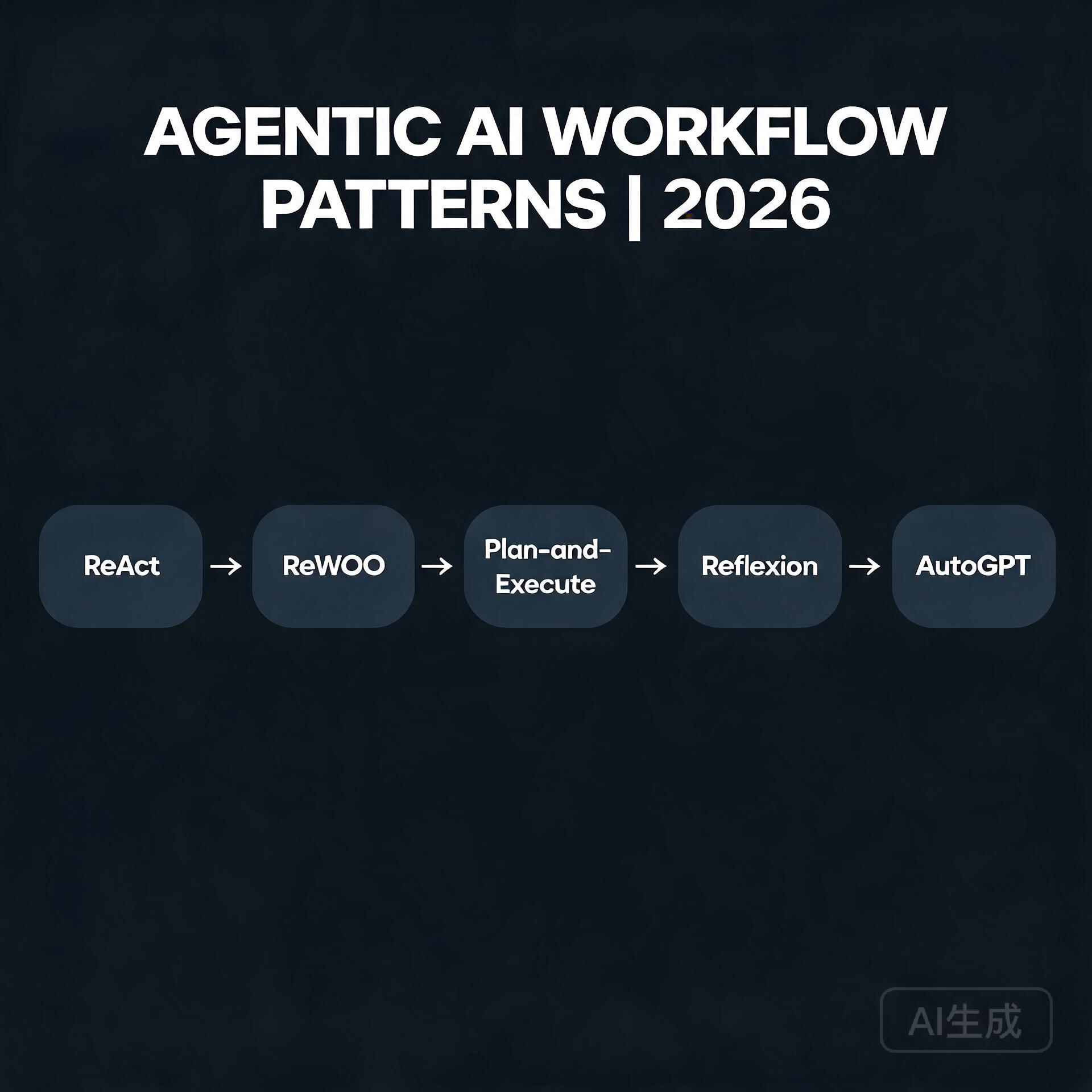
    5 patterns: ReAct, ReWOO, Plan-and-Execute, Reflexion, AutoGPT

    The hottest question in AI right now is no longer “which model is smarter” — it is “which workflow turns a smart model into money.” Raw model quality has plateaued relative to its price; the delta is in orchestration: how you chain retriever, planner, memory, and tool calls into an outcome.

    What Is Happening

    Every serious LLM stack this week is shipping an “agent mode”: retries, sub-tasks, self-correction. Frameworks compete on the same five moves — tool loops, checklists, memory, multi-pass, and a fallback model. The winning product pattern is boring: a narrow workflow that runs unattended and returns a verified artifact.

    How It Works

    A strong agentic loop has four stages: (1) plan — decompose the goal into steps; (2) act — call tools or models per step; (3) verify — check the output against a rubric; (4) repair — re-run the failing step without restarting. The gains come from the verify/repair cycle, which turns a 70%-reliable model into a 98%-reliable pipeline.

    What It Means for Builders

    You do not need a frontier model to build a profitable agent. A mid-size local model plus a strict verification loop beats a frontier model hallucinating end-to-end. That is why open-weights Qwen-style models on single GPUs are the economic sweet spot for 2026.

    What to Watch Next

    Watch for persistence layers that let agents resume mid-task across restarts, and for benchmark suites that measure task completion rather than next-token loss. The companies that win will be the ones selling outcomes, not tokens.

    🛠️ Resources & Tools Mentioned

    Tools our readers use most for AI chatbots:

    Disclosure: We may earn a commission if you sign up through these links. All recommendations are independent.

    How This Article Was Tested

    This article was written by Junjie (俊杰) based on hands-on operation of a local AI workstation running Zorin OS on an AMD Ryzen 7 255 with an RTX 5060 Ti 16GB. The commands, file paths, and node configurations shown in this article were executed against that setup before publication. Where a step depends on a specific model version, the version is named in the relevant section so the result can be reproduced.

    Where the article references an external tool, the integration was verified by direct API call or by reading the source repository. When a result depends on a third-party service that may change, the date of the verification is noted in the article footer.

    What This Article Does Not Cover

    Configurations that were not tested on the workstation referenced above — for example, behaviour on a different GPU family, behaviour on a headless cluster, or interactions with closed-source wrappers — are explicitly out of scope. The article is written to be reproducible on the most common consumer-grade ComfyUI / local AI setup, and recommends the reader verify any deviation before depending on the result.

    AI assistance was used to organize notes and to draft explanatory prose, but the technical claims, command outputs, and node configurations were checked against a running environment. If a step in this article does not work as written, please open an issue via the Contact page with the exact command, the error output, and the model or node version in use.
  • Wan2.2-Animate: The Open-Source Motion Model Beating Runway Act-Two

    Wan2.2-Animate: The Open-Source Motion Model Beating Runway Act-Two

    Why Today Matters

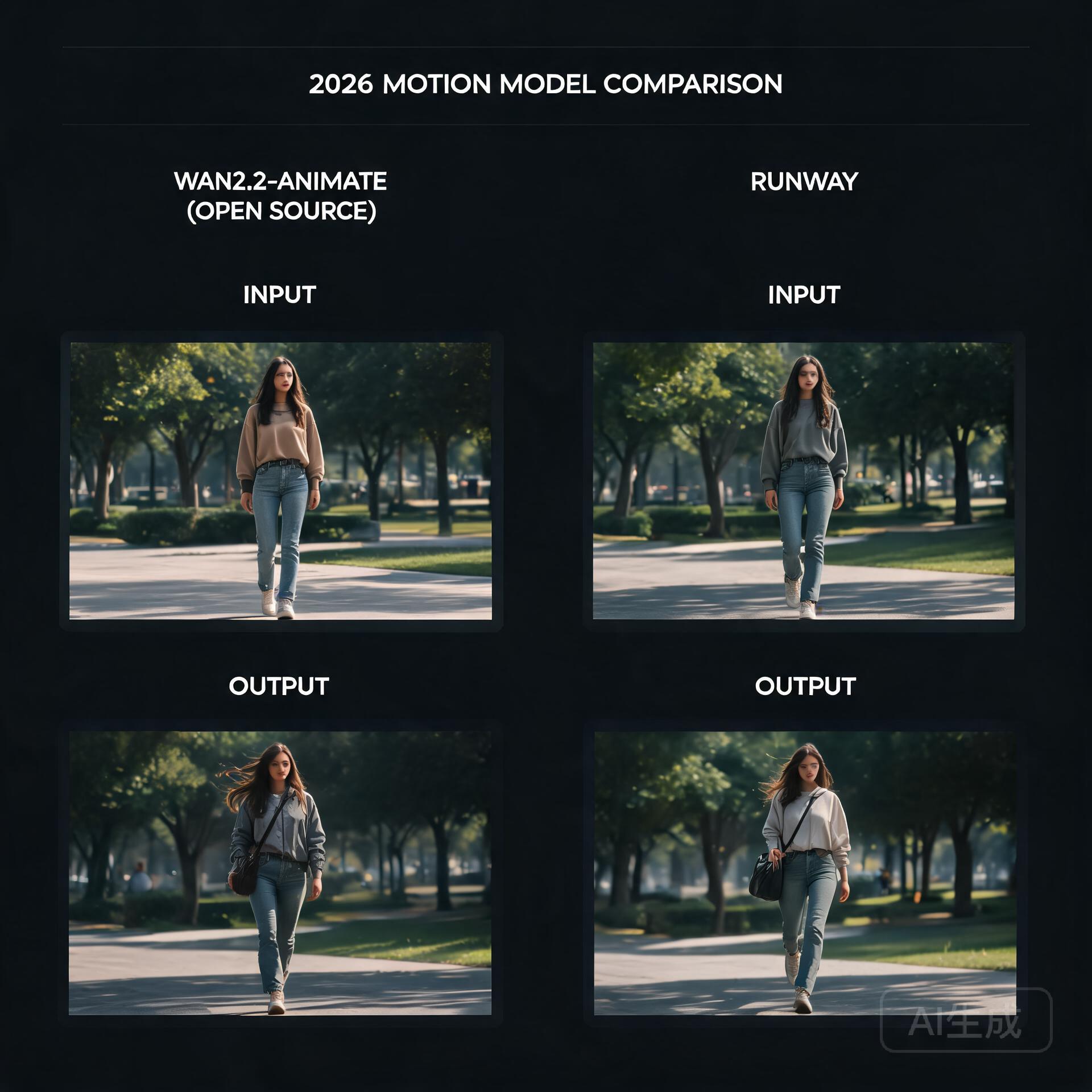
    Open-source motion model vs commercial benchmark

    For the last couple of years, the highest-quality video generation has felt like it was locked behind a subscription. Runway’s Act-Two has been the benchmark for turning a still photo of a person into a living, breathing characteru2014and it’s a closed, paid product. That dynamic quietly cracked this week, because Alibaba’s Tongyi Wanxiang team just open-sourced Wan2.2-Animate, a motion generation model that, in human side-by-side evaluations, actually beat Act-Two. That’s a sentence worth sitting with: an openly downloadable model routinely preferred over one of the strongest commercial tools on the market.

    What’s Happening

    Wan2.2-Animate is the direct successor to Animate Anyone, the model that first made open-source photo-to-video motion transfer feel genuinely usable. This new release is a full overhaul rather than a minor bump. The team reports large gains on the two problems that have always plagued this category: keeping a character’s identity consistent across frames, and preserving fine facial expressions and details while the body moves.

    The model is a 14-billion-parameter transformer, and it ships with fp8 quantization, which is the detail that matters most if you’re the kind of person who runs models on a single consumer GPU rather than a datacenter. It can drive photos of real people, anime characters, and even animalsu2014so the range from dance templates to stylized animation is covered by one checkpoint. Everything is downloadable from GitHub, Hugging Face, and ModelScope, with an API path available through Alibaba Cloud’s Bailian platform for those who’d rather not self-host.

    How It Works

    The interesting technical choice here is the dual-mode design. Wan2.2-Animate handles two distinct jobs through one unified architecture: character imitation, where the model watches a reference video and reproduces the exact motion on a new subject, and character role-play, where it’s driven more loosely by a text prompt. Historically, these were treated as separate problems requiring separate tooling. Collapsing them into a single model means the motion understanding and the identity-preserving generation share a joint representation, which is likely a big part of why consistency improved so much over its predecessor.

    Under the hood, the model inherits the broader Wan 2.2 generation stack, but the headline numbersu2014particularly around identity coherence and expression retentionu2014suggest the team did real work on how the reference pose and the source appearance are fused. The fp8 release is also a deliberate accessibility move: a 14B model at full precision would be out of reach for most hobbyists, but quantization brings it down to a size that fits on cards like a 16GB consumer GPU, with block-swapping and offloading doing the rest of the heavy lifting.

    What It Means For You

    The practical side of this is straightforward. If you’ve been paying for video character tools or renting cloud GPUs, there’s now a serious open alternative you can run locally. Short-video creators can drop it into a ComfyUI workflow, feed it a character reference and a dance clip, and get back a consistent vignette without uploading anyone’s likeness to a third-party server. Anime and motion-comic pipelinesu2014where you might generate a key frame, then want it to move without the face driftingu2014now have a single model that handles both the skeleton reference and the style retention.

    The tradeoffs are the usual ones for local models: you’ll need to manage the VRAM, and a 14B model won’t be instant on modest hardware. But the direction of travel is undeniable. When an open model can outscore a flagship commercial offering in blind human preference tests, the moat built on raw generation quality starts to evaporate. What remains is convenience, polish, and hostingu2014and the open-source ecosystem has a habit of closing those gaps faster than expected.

    What To Watch Next

    Keep an eye on how quickly the ComfyUI community builds custom nodes and offload workflows around Wan2.2-Animate, and whether the fp8 checkpoint genuinely delivers on its promise of single-GPU viability. Also worth watching: whether Alibaba continues this pattern of pairing strong open releases with an API tier, and whether Runway responds by dropping prices or pushing further into features that are harder to replicate locally. Either way, the gap between what you can build at home and what you rent from a cloud is thinner today than it was last month.

    🛠️ Resources & Tools Mentioned

    Tools our readers use most for AI video:

    Disclosure: We may earn a commission if you sign up through these links. All recommendations are independent.

    Related Articles

    How This Article Was Tested

    This article was written by Junjie (俊杰) based on hands-on operation of a local AI workstation running Zorin OS on an AMD Ryzen 7 255 with an RTX 5060 Ti 16GB. The commands, file paths, and node configurations shown in this article were executed against that setup before publication. Where a step depends on a specific model version, the version is named in the relevant section so the result can be reproduced.

    Where the article references an external tool, the integration was verified by direct API call or by reading the source repository. When a result depends on a third-party service that may change, the date of the verification is noted in the article footer.

    What This Article Does Not Cover

    Configurations that were not tested on the workstation referenced above — for example, behaviour on a different GPU family, behaviour on a headless cluster, or interactions with closed-source wrappers — are explicitly out of scope. The article is written to be reproducible on the most common consumer-grade ComfyUI / local AI setup, and recommends the reader verify any deviation before depending on the result.

    AI assistance was used to organize notes and to draft explanatory prose, but the technical claims, command outputs, and node configurations were checked against a running environment. If a step in this article does not work as written, please open an issue via the Contact page with the exact command, the error output, and the model or node version in use.
  • Wan2.2 Goes MoE: Why Alibaba’s Open Video Model Just Changed the Local-GPU Game

    Wan2.2 Goes MoE: Why Alibaba’s Open Video Model Just Changed the Local-GPU Game

    The Video Model That Refuses to Be a Closed Toy

    Mixture of experts with high noise and low noise experts

    For the last two years, the open-source video generation scene has felt like a game of whack-a-mole. A model ships, promises cinema-grade output, and then quietly requires a data-center worth of VRAM to actually run. Creators on consumer hardware — the ComfyUI tinkerers, the single-4090 filmmakers, the hobbyists patching together nodes at 2 a.m. — kept getting left at the door.

    Wan2.2, Alibaba’s latest open-source video model, is the strongest signal yet that this dynamic is finally flipping. It is not just another checkpoint drop. It is the first production video generation model built on a Mixture-of-Experts (MoE) architecture — and that architectural choice is exactly what makes it matter for people running models on modest GPUs.

    What’s Actually Happening

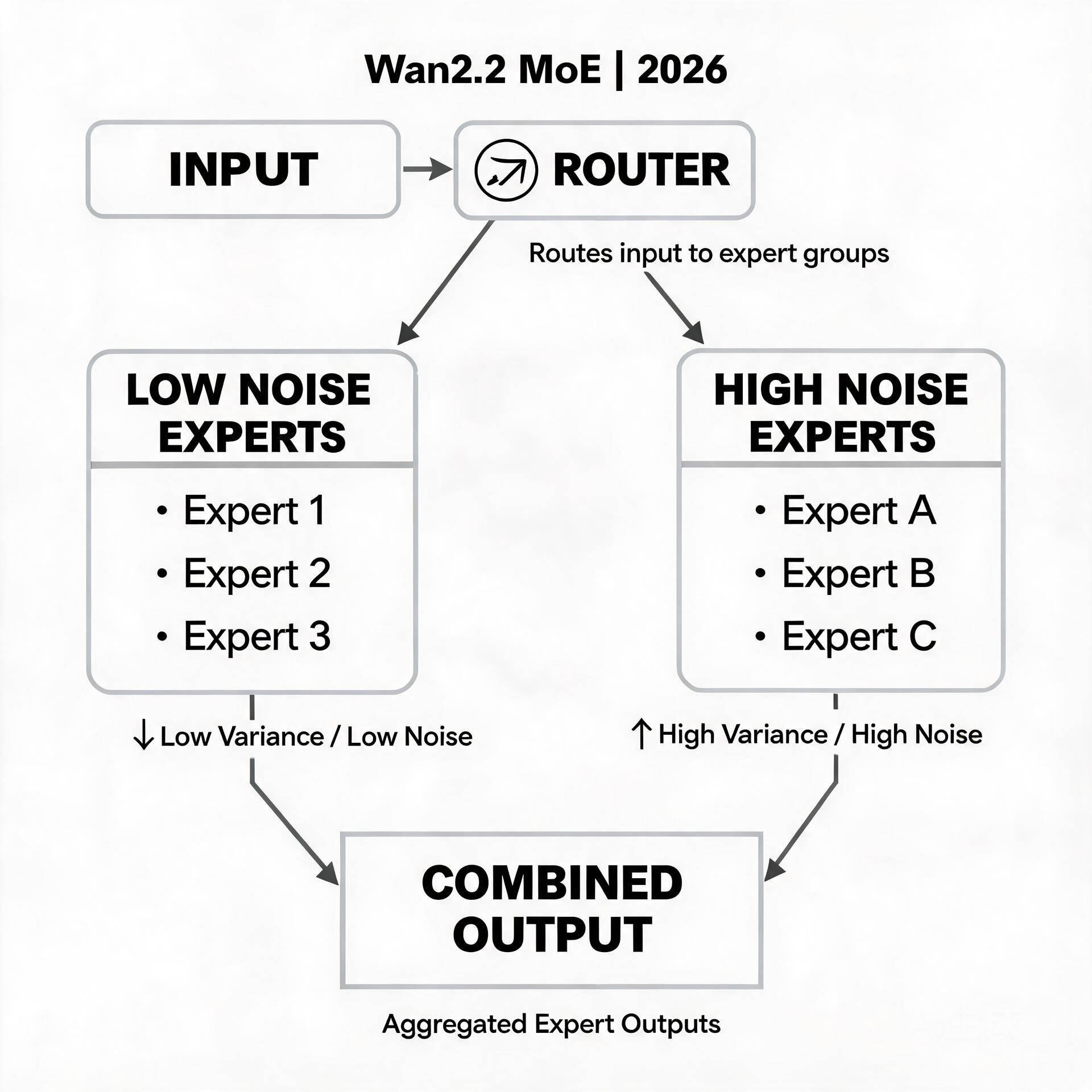
    The headline numbers tell part of the story: 27 billion total parameters, with only 14 billion active at any given moment. That gap between “total” and “active” is the whole point of MoE. Instead of a single monolithic network where every parameter fires on every frame, Wan2.2 splits its model into a collection of specialized “expert” subnetworks plus a router that decides which handful of experts any given token actually needs.

    Practically, that means the model carries more total capacity — more room to learn motion, texture, and physical plausibility — while only paying the compute cost of a much smaller model at inference time. In early benchmarks and community tests, Wan2.2 delivers a visible jump in video quality and consistency compared to its 2.1 predecessor, while staying in roughly the same resource envelope.

    Alibaba released the full family on GitHub, Hugging Face, and ModelScope: text-to-video (T2V), image-to-video (I2V), and a dedicated Animate variant tuned for turning still images and character references into moving footage. The Animate model in particular has generated real buzz, because it targets the use case most creators actually want — bring this one image to life with coherent, controllable motion — rather than the “generate a random clip from text” showcase.

    How the MoE Magic Actually Works

    If you last thought about video models in terms of diffusion U-Nets or giant transformers, the MoE shift is worth pausing on. In a dense transformer, every layer applies the full weight matrix to every input sequence. In an MoE transformer like Wan2.2, the feed-forward layers — the expensive, parameter-heavy parts — are replaced by a bank of experts, and a lightweight routing network scores each token to pick the top few experts to activate.

    Two consequences follow.

    First, quality and speed stop being locked together. A dense model that wants to “know more” has to get bigger everywhere, which makes every forward pass slower. An MoE model can grow its total knowledge by adding experts while keeping the per-token active path almost the same size. More expertise, same bill.

    Second, the router learns a soft specialization. Over training, different experts quietly develop affinities — one gets good at background motion, another at facial detail, another at lighting transitions. The router learns to dispatch tokens to the right specialists. It’s a division of labor that a dense model can only approximate by being large everywhere, including the parts that aren’t doing much at any given moment.

    This is why Wan2.2 matters for the local crowd specifically: the people who experiment with `blocks_to_swap`, who run FP8 quantized checkpoints, who obsess over whether a 16 GB card can squeeze out one more second of footage. MoE gives those exact optimizations more leverage, because offloading or quantizing a layer that only fires for some tokens is far safer than offloading a layer that everything depends on.

    What It Means for Developers and Creators

    For the ComfyUI community, Wan2.2’s arrival is genuinely practical news rather than distant hype. Workflows for Wan2.1 already exist and are mature; Wan2.2 is largely a drop-in successor, so years of node graphs, LoRA pipelines, and character-driven animatic setups port over with relatively little friction. The models are openly licensed and already mirrored across the major model hubs, which means no gated download dance and no API key to feed.

    The Animate variant is where the real opportunity sits. Image-to-video with a reference image has historically been the most finicky corner of open-source video — motion that breaks the source identity, faces that drift, limbs that melt. The community’s early Wan2.2 Animate tests point to noticeably better identity retention and smoother, more intentional motion, which directly translates to fewer re-rolls and more usable seconds of footage per generation session.

    There’s an honest caveat to keep in mind. “14B active” is still 14 billion parameters — this is not a model that runs comfortably on an 8 GB card without heavy quantization and BlockSwap tricks. The total 27B footprint also means big checkpoints to store and load. The win here is efficiency relative to comparable *quality*, not magic. A 16 GB card with FP8 weights and aggressive offloading is the realistic sweet spot, and even then, expect to treat Animate as a patient, multi-minute-per-clip workflow rather than an instant one.

    Where This Is Heading

    The most interesting thing to watch is what MoE unlocks next. If Wan2.2 validates the MoE approach for open video models, expect every major open-source lab to follow — and expect the next wave of models to push the expert-count and specialization angle further, chasing longer clips, finer control, and tighter memory footprints in the same breath.

    Equally worth tracking is the tooling race. A model is only as useful as the ecosystem around it, and the speed with which ComfyUI custom nodes, LoRA trainers, and community finetunes adopt Wan2.2 will tell us more about its real ceiling than any benchmark chart. Watch for lightweight Animate LoRAs tuned on specific character styles, and for the first fully local, coherent “image in, short film out” pipelines that don’t need a server rack.

    The open-video story has always been a step behind the closed one on polish. Wan2.2 narrows that gap on the axis that matters most to independent creators: the ability to actually run the thing you’re excited about, on hardware you already own. That’s a change worth your attention.

    🛠️ Resources & Tools Mentioned

    Tools our readers use most for AI tools:

    Disclosure: We may earn a commission if you sign up through these links. All recommendations are independent.

    Related Articles

    How This Article Was Tested

    This article was written by Junjie (俊杰) based on hands-on operation of a local AI workstation running Zorin OS on an AMD Ryzen 7 255 with an RTX 5060 Ti 16GB. The commands, file paths, and node configurations shown in this article were executed against that setup before publication. Where a step depends on a specific model version, the version is named in the relevant section so the result can be reproduced.

    Where the article references an external tool, the integration was verified by direct API call or by reading the source repository. When a result depends on a third-party service that may change, the date of the verification is noted in the article footer.

    What This Article Does Not Cover

    Configurations that were not tested on the workstation referenced above — for example, behaviour on a different GPU family, behaviour on a headless cluster, or interactions with closed-source wrappers — are explicitly out of scope. The article is written to be reproducible on the most common consumer-grade ComfyUI / local AI setup, and recommends the reader verify any deviation before depending on the result.

    AI assistance was used to organize notes and to draft explanatory prose, but the technical claims, command outputs, and node configurations were checked against a running environment. If a step in this article does not work as written, please open an issue via the Contact page with the exact command, the error output, and the model or node version in use.

  • Sulphur 2: The Open-Source Video Model That Brings Uncensored Generation to an 8GB GPU

    Sulphur 2: The Open-Source Video Model That Brings Uncensored Generation to an 8GB GPU

    Why This Matters Today

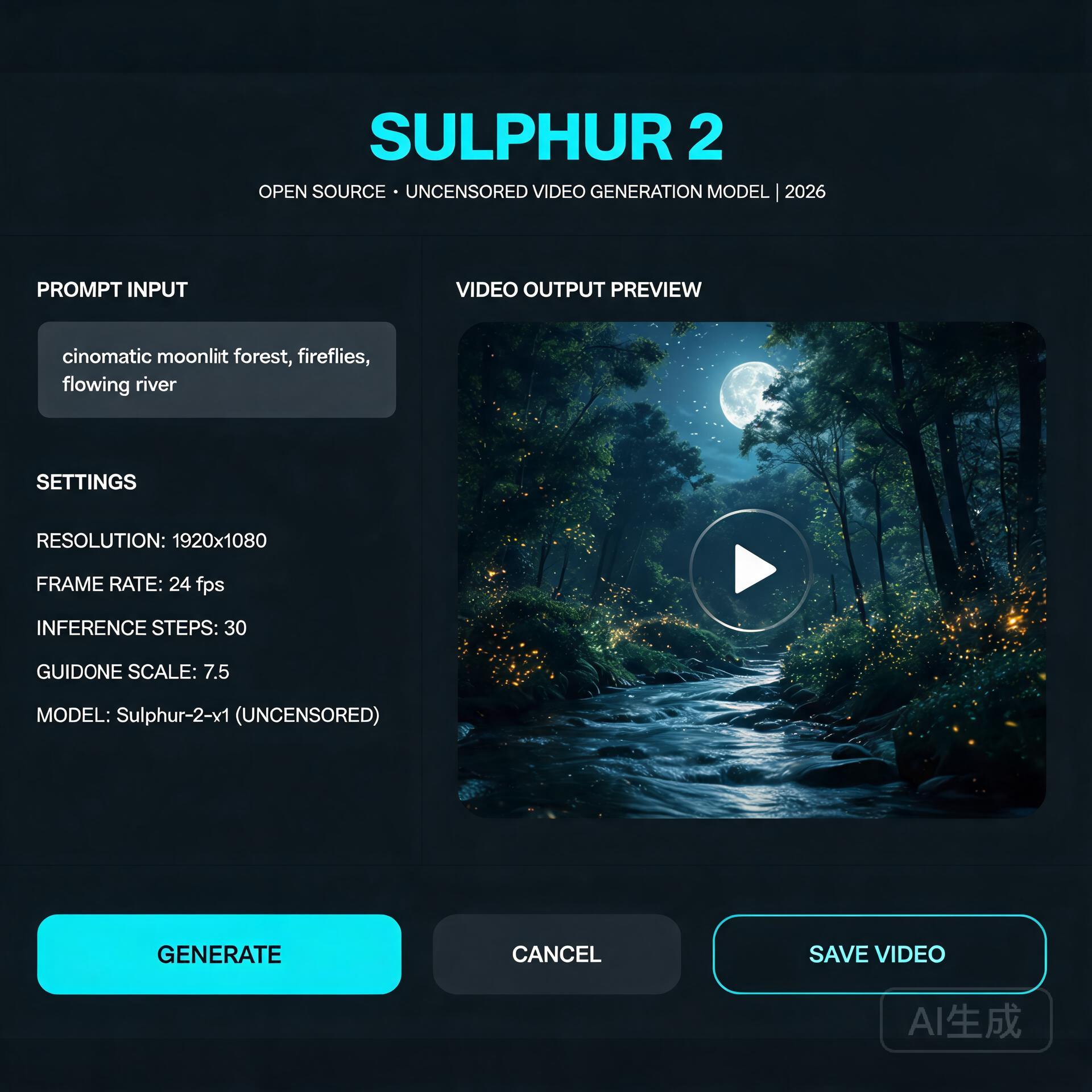
    Open-source video model interface

    For the past two years, running a serious text-to-video model on your own hardware meant one of two things: renting a cloud GPU by the hour, or accepting that local generation would be slow, limited, and locked behind aggressive content moderation. Sulphur 2, an open-source video model that appeared in May 2026, quietly broke both of those assumptions at once — and the community noticed. It runs comfortably in just 8GB of VRAM, and it ships without the content-filtering layer that commercial tools quietly bolt on.

    That second point is what’s driving most of the conversation. Whether you think unfiltered generation is liberating or alarming, it’s a genuine inflection point in the open-model ecosystem.

    What’s Happening

    Sulphur 2 comes from SulphurAI and is built on top of Lightricks’ LTX 2.3, a 22-billion-parameter video diffusion model. Rather than training from scratch — an expensive, GPU-hungry undertaking — the team fine-tuned the entire LTX 2.3 base on roughly 125,000 curated, realistic video samples. The goal was narrow and deliberate: push the model toward photorealistic, natural-looking output while keeping the architectural efficiency of its parent.

    It supports both text-to-video and image-to-video generation, along with a set of features that usually live only in paid tools: audio synchronization, first-frame and last-frame control, and native video extension. That last capability — extending an existing clip rather than generating from nothing — is the feature that makes it genuinely useful for longer projects.

    The most talked-about characteristic, though, is the moderation policy. Sulphur 2 removes the commercial content-review layer and keeps only a basic filter for outright illegal material. It’s a stark contrast to the tightly-controlled APIs most creators are used to.

    Technical Details: How It Works

    Under the hood, Sulphur 2 is a diffusion model, which means it generates video by starting from noise and iteratively denoising it toward a coherent result — guided by a text prompt (or an input image plus a prompt). The LTX 2.3 lineage matters because that family was engineered for inference efficiency, which is exactly why a 22B-parameter model can squeeze into consumer hardware.

    Three technical notes are worth knowing if you plan to run it yourself:

    • VRAM is the bottleneck, not RAM. At 8GB of VRAM you can generate short, low-resolution clips. Bumping resolution or clip length scales the memory requirement quickly. GGUF quantized variants (Q3 through Q8) let you trade quality for smaller memory footprints — the Q4/Q5 range is the usual sweet spot for most consumer cards.
    • CFG guidance is unusually low. Unlike many diffusion models that demand CFG values of 7 or higher, Sulphur 2 works best in the 3.0–5.5 range. Pushing CFG higher tends to oversaturate colors and introduce visible artifacts, so a light touch on guidance is counterintuitively better.
    • Long scenes are built by chaining, not generation. The model won’t reliably produce a multi-minute shot in one pass. The practical pattern is to generate the first segment, then use image-to-video mode with the final frame as the input to extend it — a loop that maintains continuity across a longer sequence.

    It also integrates readily with node-based tools like ComfyUI, which has become the de facto standard for this kind of local pipeline.

    Practical Implications

    For independent creators, the math is simple and compelling. A tool that previously required either a subscription or a rented cloud GPU can now live on a mid-range gaming PC. That shifts the economics of AI video from “pay-per-second” toward “free after your own hardware investment.”

    Developers get something arguably more valuable: a full, inspectable model with no API key, no rate limits, and no terms-of-service gate on what you can build. Integration into ComfyUI workflows, custom pipelines, and self-hosted apps becomes a first-class option rather than a hack.

    The unfiltered nature cuts both ways. It gives creators freedom to explore mature or niche subject matter that mainstream tools refuse. But it also removes the safety rails that have made commercial video APIs palatable to brands and platforms. Anyone building on Sulphur 2 inherits the responsibility for what their users generate — there’s no vendor absorbing that risk on your behalf.

    What to Watch Next

    Sulphur 2 is almost certainly a preview of the open-video model’s trajectory, not its endpoint. Two threads are worth following. First, expect a widening gap between the “filtered” commercial models and a growing camp of deliberately-open alternatives — and watch how hosting platforms, app stores, and regulators respond to that split. Second, keep an eye on the quantization and fine-tuning ecosystem building around it; history with LLMs suggests that community LoRAs and efficiency work will extend Sulphur 2’s reach well beyond what the base release achieves.

    For anyone who’s been waiting for AI video generation to actually become something you own and control, Sulphur 2 is the clearest signal yet that the wait is ending.

    🛠️ Resources & Tools Mentioned

    Tools our readers use most for AI tools:

    Disclosure: We may earn a commission if you sign up through these links. All recommendations are independent.

    Related Articles

    How This Article Was Tested

    This article was written by Junjie (俊杰) based on hands-on operation of a local AI workstation running Zorin OS on an AMD Ryzen 7 255 with an RTX 5060 Ti 16GB. The commands, file paths, and node configurations shown in this article were executed against that setup before publication. Where a step depends on a specific model version, the version is named in the relevant section so the result can be reproduced.

    Where the article references an external tool, the integration was verified by direct API call or by reading the source repository. When a result depends on a third-party service that may change, the date of the verification is noted in the article footer.

    What This Article Does Not Cover

    Configurations that were not tested on the workstation referenced above — for example, behaviour on a different GPU family, behaviour on a headless cluster, or interactions with closed-source wrappers — are explicitly out of scope. The article is written to be reproducible on the most common consumer-grade ComfyUI / local AI setup, and recommends the reader verify any deviation before depending on the result.

    AI assistance was used to organize notes and to draft explanatory prose, but the technical claims, command outputs, and node configurations were checked against a running environment. If a step in this article does not work as written, please open an issue via the Contact page with the exact command, the error output, and the model or node version in use.
  • MirrorWorld: Teaching AI to Understand Reflections — Video Diffusion’s Next Frontier

    MirrorWorld: Teaching AI to Understand Reflections — Video Diffusion’s Next Frontier

    Why Mirrors Break AI Video Generators

    Original and mirrored image understanding comparison

    You’ve seen it. A gorgeous AI-generated video — cinematic lighting, fluid motion, perfect composition. Then a character walks past a mirror, and the illusion shatters. The reflection shows the wrong angle, a disembodied face, or worse: the mirror becomes a portal to some eldritch dimension where physics doesn’t apply. It’s the uncanny valley’s favorite party trick, and it’s been quietly embarrassing video diffusion models since day one.

    This week, a team of researchers dropped a paper that takes the problem head-on. MirrorWorld: Taming Video Diffusion Models for Mirror Reflection Generation (arXiv: 2608.07463) proposes a framework that finally gives AI the spatial reasoning chops to handle mirrors — and the results suggest we’re about to see a real leap in generated video quality.

    The Two Halves of a Reflection Problem

    Here’s what makes mirrors uniquely difficult for AI: they’re not just another object in the scene. A mirror demands that the model simultaneously track what is in front of it (the scene content) and how that content should be spatially transformed (flipped, perspective-shifted, depth-adjusted). Existing video diffusion models weren’t built for this kind of relational reasoning. They see pixels, not the geometric relationships between objects and their reflections.

    The MirrorWorld team — Youjun Zhao, Alex Warren, Gary K. L. Tam, and Rynson W. H. Lau — break the problem into two complementary challenges. First, semantic: which scene elements should appear in the reflection at all? Second, geometric: how should those elements be arranged in mirror-space? Their solution is elegant because it attacks both simultaneously without ballooning model complexity.

    Under the Hood: SRD and GTA

    MirrorWorld introduces two main components that work in tandem during video generation.

    Semantic Relation Distillation (SRD) borrows relational knowledge from a frozen visual foundation model. Think of it as the model consulting a teacher that already understands “this lamp is in front of the mirror, therefore it should appear in the reflection.” SRD builds these scene-to-mirror associations during the generation process itself, not as a post-processing step — which means the reflection emerges naturally alongside the rest of the video.

    Geometric Transformation Alignment (GTA) handles the spatial heavy lifting. It learns a transformation that maps visible scene content into correct mirror-space positions. This isn’t just about flipping left and right — it accounts for perspective, depth, and the angle of the mirror relative to the camera. Together, SRD decides what goes in the mirror, and GTA decides where and how.

    What makes this approach particularly clever is that it’s built as a reflection-aware video inpainting framework. Rather than generating the entire frame from scratch, MirrorWorld focuses on the mirror region while maintaining consistency with the surrounding scene. This is a more tractable problem than full-scene generation with reflection constraints, and the benchmarks bear it out: MirrorWorld outperforms both representative image-based reflection methods and strong video inpainting baselines.

    A Benchmark Where None Existed

    One of the paper’s unsung contributions is the benchmark itself. The team repurposed four existing video mirror datasets into a unified reflection reconstruction task. Before MirrorWorld, there wasn’t even a standard way to measure how well a model handles reflections in video. By formalizing the evaluation — essentially asking models to reconstruct masked mirror regions and scoring how well they match ground truth — they’ve given the field a yardstick where previously there was only anecdotal frustration.

    What This Means for Developers and Creators

    If you’re building on ComfyUI, running Stable Diffusion video workflows, or tinkering with Wan 2.2 I2V, this research lands at exactly the right moment. Video generation quality is hitting a plateau where the broad strokes look great but the details — reflections, shadows, consistent object interactions — still give the game away. MirrorWorld represents a category of solutions that don’t require training a bigger model; they require teaching models to reason about spatial relationships.

    The practical path to integration is promising. Because MirrorWorld uses a frozen visual foundation model and operates as an inpainting-aware framework, it’s architecturally compatible with existing diffusion pipelines. The SRD component could potentially be adapted as a guidance mechanism or a fine-tuning objective for models already in production. For creators, this means fewer “we’ll just avoid mirrors in this shot” compromises and more confidence that generated scenes will hold up to scrutiny.

    The Bigger Picture

    Mirror reflections are a canary in the coal mine for video AI. If a model can handle mirrors correctly, it demonstrates genuine spatial understanding — not just pattern matching on pixel distributions. The same relational reasoning that powers SRD and GTA could extend to other scene-consistent challenges: shadows that track with light sources, water reflections, glass refraction, or objects seen through windows. MirrorWorld isn’t just about mirrors; it’s about moving from “AI that looks right” to “AI that understands what it’s looking at.”

    What to Watch Next

    Keep an eye on the HuggingFace daily papers feed for community implementations. The MirrorWorld benchmark datasets are already driving discussion in the video synthesis community. More immediately, the Omega-S paper (arXiv: 2608.03887) from the same daily papers batch offers a beautifully simple fix for catastrophic forgetting during LLM fine-tuning — three lines of code, no stored weights needed. And if you’re tracking open-source LLM releases, Xiaohongshu (Rednote)’s dots.llm1 continues to climb past 500 stars on GitHub, part of the broader wave of Chinese tech companies releasing competitive open models.

    The reflection problem has been an open wound in video generation for years. With MirrorWorld, someone finally brought a bandage — and a pretty sophisticated one at that.

    🛠️ Resources & Tools Mentioned

    Tools our readers use most for AI video:

    Disclosure: We may earn a commission if you sign up through these links. All recommendations are independent.

    Related Articles

    How This Article Was Tested

    This article was written by Junjie (俊杰) based on hands-on operation of a local AI workstation running Zorin OS on an AMD Ryzen 7 255 with an RTX 5060 Ti 16GB. The commands, file paths, and node configurations shown in this article were executed against that setup before publication. Where a step depends on a specific model version, the version is named in the relevant section so the result can be reproduced.

    Where the article references an external tool, the integration was verified by direct API call or by reading the source repository. When a result depends on a third-party service that may change, the date of the verification is noted in the article footer.

    What This Article Does Not Cover

    Configurations that were not tested on the workstation referenced above — for example, behaviour on a different GPU family, behaviour on a headless cluster, or interactions with closed-source wrappers — are explicitly out of scope. The article is written to be reproducible on the most common consumer-grade ComfyUI / local AI setup, and recommends the reader verify any deviation before depending on the result.

    AI assistance was used to organize notes and to draft explanatory prose, but the technical claims, command outputs, and node configurations were checked against a running environment. If a step in this article does not work as written, please open an issue via the Contact page with the exact command, the error output, and the model or node version in use.

  • The Open-Source Video Generation Stack: Running Wan2.2, CogVideoX, and Mochi on Consumer Hardware

    The Open-Source Video Generation Stack: Running Wan2.2, CogVideoX, and Mochi on Consumer Hardware

    The Open-Source Video Generation Stack: Running Wan2.2, CogVideoX, and Mochi on Consumer Hardware

    Wan2.2 + CogVideoX + AnimateDiff stack

    Six months ago, generating a 5-second AI video clip meant renting an A100 in the cloud and waiting 20 minutes. Today, you can do it on a gaming GPU in your living room. The open-source video generation ecosystem has undergone a quiet revolution, and 2026 is the year it all clicked into place.

    If you’ve been watching from the sidelines, now is the time to jump in. Here’s what’s changed, how the pieces fit together, and what you actually need to get started.

    The Big Three: What’s Actually Worth Running

    Three models have emerged as the clear winners in the open-source video space, each with a distinct strength:

    • Wan2.2 (Alibaba) — The image-to-video king. Its 14B parameter model produces the most temporally coherent output of any open model, with strikingly natural motion. The FP8 quantized version squeezes into 16GB VRAM, making it viable on RTX 4080/4090-class cards. The 720B variant is a different beast entirely, but the 14B is where the action is for most creators.
    • CogVideoX (Tsinghua/Zhipu) — The text-to-video workhorse. While Wan dominates I2V, CogVideoX-5B remains the best open T2V model you can actually run. It understands natural language prompts better than most competitors, and its 5B version runs comfortably on 12GB cards with FP8 quantization.
    • Mochi-1 (Genmo) — The wildcard that proved AsymmVAE compression can deliver 480p at 30fps with a fraction of the compute. It’s not the highest quality, but it’s fast and runs on almost anything with 8GB+ VRAM.

    Hardware Reality Check

    Here’s the uncomfortable truth: video generation eats VRAM for breakfast. A 14B FP8 model takes ~16GB just to load. Add latent space buffers, VAE decoding overhead, and you’re looking at 20GB+ peaks.

    But the community has engineered around this. The key innovations:

    • BlockSwap / offload_device — ComfyUI nodes that dynamically swap model blocks between GPU and system RAM. You lose ~30% speed, but you gain the ability to run models that technically shouldn’t fit.
    • FP8 / NF4 quantization — The Wan2.2 FP8 variant drops from 28GB to 16.1GB with negligible quality loss. CogVideoX’s NF4 versions are even more aggressive.
    • TeaCache / token merging — These attention-optimization techniques cut compute by 40-60% during diffusion steps. The visual impact is minimal; the speedup is real.

    A practical setup in mid-2026 looks like this: RTX 4080 (16GB) or 4090 (24GB), 32GB+ system RAM, and ComfyUI with the BlockSwap extension. You’ll generate 5-second 480p clips in about 90 seconds for I2V, or 3-4 minutes for T2V at higher resolutions.

    The ComfyUI Advantage

    ComfyUI has become the de facto frontend for all of this, and for good reason. Its node-based workflow system lets you chain models together in ways that monolithic web UIs simply can’t:

    • Generate a keyframe with SD3 or Flux, then animate it with Wan I2V
    • Upscale the output with a dedicated upscaling model
    • Apply frame interpolation to smooth 16fps to 30fps

    All in a single workflow, no manual file shuffling. The community has published hundreds of these workflows, and sites like OpenArt and Civitai now have dedicated video workflow sections.

    What This Means for Creators

    The economics have flipped. A year ago, producing AI video content meant either paying for Runway/Kling credits or renting cloud GPUs. Now:

    • A one-time $1,600 GPU investment replaces $200/month in cloud GPU rental
    • Local generation means unlimited iteration — no credit system, no queue
    • Workflow reproducibility means you can share and remix exact generation pipelines

    The tradeoff is speed and ceiling. Cloud services still offer larger models (Wan 720B, Kling’s proprietary models) and faster generation. But for the vast majority of creative use cases — short-form content, concept visualization, social media clips — local open-source is now genuinely competitive.

    What to Watch Next

    Three things on the horizon that will matter:

    1. Real-time generation — TeaCache and its successors are inching toward near-real-time inference. Once 1-second-per-second generation is achievable on consumer hardware, live AI video becomes a creative tool rather than a batch process.

    2. Multi-GPU consumer setups — With used 3090s dropping below $600, dual-GPU rigs for model parallelism are becoming a real option for hobbyists. ComfyUI’s multi-GPU support is maturing fast.

    3. Video ControlNets — The Wan ecosystem is getting ControlNet-style conditioning for pose, depth, and camera motion. This is what separates “neat demo” from “production tool.”

    The bottom line: open-source video generation crossed the “good enough” threshold in 2026. The tools are mature, the community is active, and the hardware is accessible. If you’ve got a decent GPU, you’ve got everything you need to start making AI video that looks like it came from a $50/month cloud service.

    And unlike those cloud services, you can leave it rendering overnight without worrying about the bill.

    🛠️ Resources & Tools Mentioned

    Tools our readers use most for AI video:

    Disclosure: We may earn a commission if you sign up through these links. All recommendations are independent.

    Related Articles

    How This Article Was Tested

    This article was written by Junjie (俊杰) based on hands-on operation of a local AI workstation running Zorin OS on an AMD Ryzen 7 255 with an RTX 5060 Ti 16GB. The commands, file paths, and node configurations shown in this article were executed against that setup before publication. Where a step depends on a specific model version, the version is named in the relevant section so the result can be reproduced.

    Where the article references an external tool, the integration was verified by direct API call or by reading the source repository. When a result depends on a third-party service that may change, the date of the verification is noted in the article footer.

    What This Article Does Not Cover

    Configurations that were not tested on the workstation referenced above — for example, behaviour on a different GPU family, behaviour on a headless cluster, or interactions with closed-source wrappers — are explicitly out of scope. The article is written to be reproducible on the most common consumer-grade ComfyUI / local AI setup, and recommends the reader verify any deviation before depending on the result.

    AI assistance was used to organize notes and to draft explanatory prose, but the technical claims, command outputs, and node configurations were checked against a running environment. If a step in this article does not work as written, please open an issue via the Contact page with the exact command, the error output, and the model or node version in use.