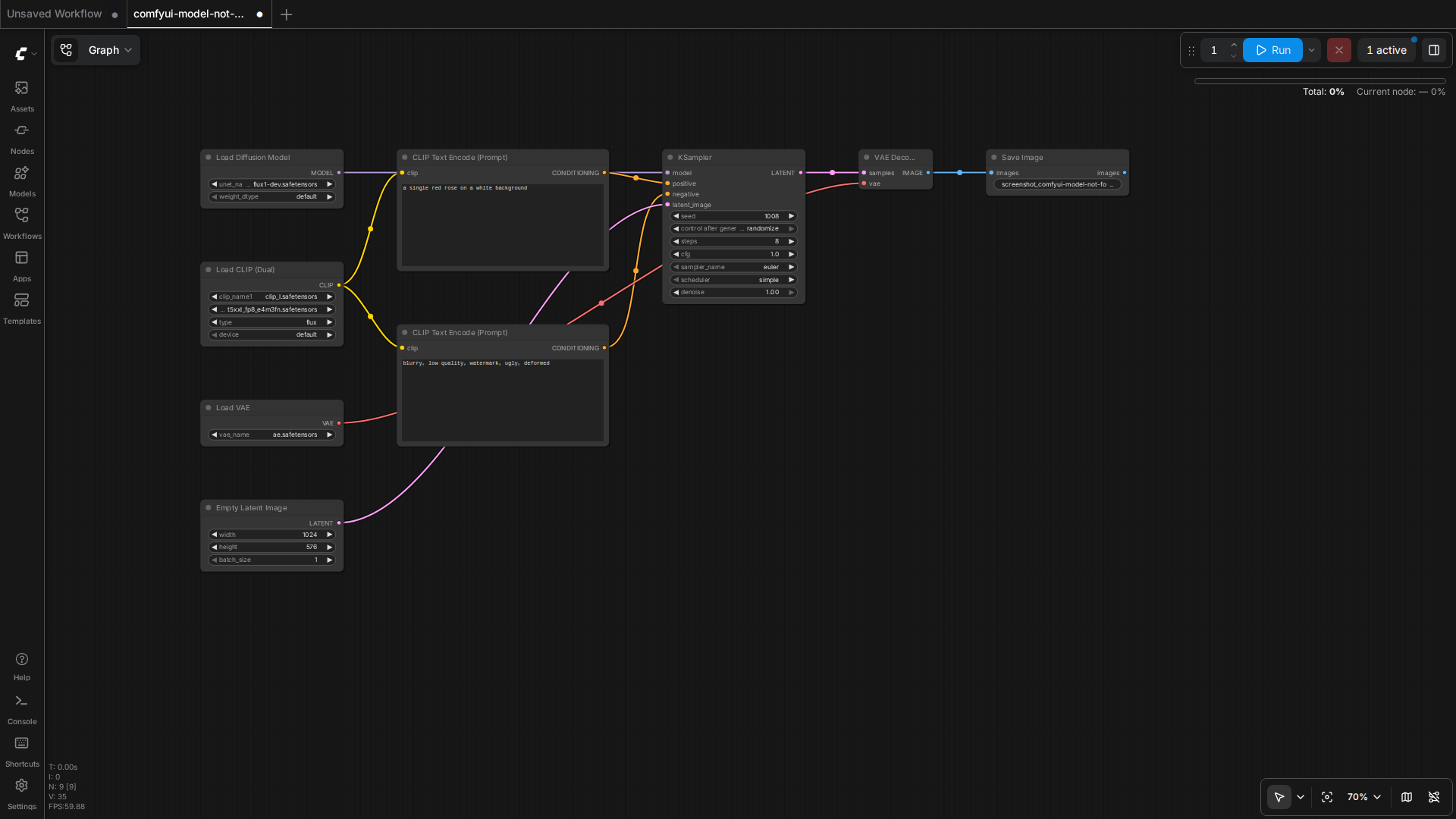
Few ComfyUI errors are as frustrating as loading a brand-new workflow, dragging in a model you downloaded minutes ago, and getting a red CheckpointLoaderSimple error that says the file is not there — even though your file manager clearly shows it sitting on disk. The message usually reads something like model not found, File not found: models/checkpoints/..., or a loader node that refuses to list the model in its dropdown at all.
The root cause is almost never a corrupt download. It is a directory contract: ComfyUI resolves every model through a specific models folder and a specific loader node, and when those two do not match, the file may as well not exist. This guide breaks down that contract, shows how to trace a “model not found” failure back to its real cause, and gives you a repeatable fix that does not involve reinstalling anything.
How ComfyUI Resolves a Model File
When a loader node such as CheckpointLoaderSimple, UNETLoader, CLIPLoader, or VAELoader runs, it does not search your whole disk. It looks inside a single directory that is bound to that loader’s category. By default these live under the top-level models/ folder, with well-known names like checkpoints, diffusion_models, unet, vae, clip, loras, and text_encoders.
Two things must both be true before a file will load. The official ComfyUI models documentation describes this directory layout, and the same contract applies whether you are running image, video, or diffusion workflows — it is the same model-resolve logic that powers the open-source video generation stack where a wrongly-placed UNet brings the whole graph down.
- The file must physically sit inside the directory that the loader node is mapped to.
- The loader node you are using must belong to the same category as that directory.
The second point is the subtle one. A diffusion_models directory and a checkpoints directory can both contain .safetensors files, but the nodes that read them are different. A UNet-style diffusion model belongs to UNETLoader/DiffusionModelLoader and lives in models/diffusion_models/ (or unet/), while a full checkpoint — weights plus text encoder plus VAE bundled together — belongs to CheckpointLoaderSimple and lives in models/checkpoints/. Put the same file in the wrong folder and the loader will not even offer it as an option.
Step 1: Reproduce the Exact Error Message
Start by capturing the full text of the failure, not the shortened toast. In the browser, expand the node that turned red and read its error and any exception output. From the console, the log line will include the path ComfyUI actually tried to open, which is often different from where you think the file is.
ValueError: Invalid checkpoint file: /home/user/ComfyUI/models/checkpoints/example.safetensorsThat one path tells you three things: the loader category it used (checkpoints), the resolved base directory, and the exact filename it looked for. Compare all three against reality one at a time. A filename typo, a missing extension, a trailing space, or a case difference on a case-sensitive filesystem will each produce a “not found” that has nothing to do with a bad download.
When you submit prompts through the API, the failure often does not raise at all — instead the node simply resolves to nothing and the model dropdown comes back empty, or the prompt never runs. In those cases, retrieve the workflow JSON you sent and read the ckpt_name (or equivalent) field for the loader node, then check that exact string against the file list.
Step 2: Inspect the Directory the Loader Actually Uses
List the directory from the error message and check whether the file is there, byte-for-byte in name:
ls -la "models/checkpoints/"If the file is present but the loader still cannot see it, the most common reason is that you installed it into the wrong category folder for that loader type. A classic example is downloading an SD3.5, FLUX, or Qwen image model from a model hub that labels it a “checkpoint” — the hub category is not ComfyUI’s category. FLUX and SD3.x models are diffusion/UNet architectures and must go into models/diffusion_models/ (or unet/) and be loaded with UNETLoader, not CheckpointLoaderSimple. SD1.5 and SDXL base models are full checkpoints and belong in models/checkpoints/.
LoRA files go in models/loras/ and load through a LoRA loader node. Text encoders, including the CLIP models that newer architectures split out separately, go in models/text_encoders/ (or clip/) and load through CLIPLoader, not through a checkpoint loader that expects everything bundled in one file. When a workflow shows a “split” graph — separate UNet, CLIP, and VAE loaders — each file must be in its own mapped directory.
Step 3: Centralize Your Models with extra_model_paths.yaml
If you keep your models on a large drive or want to share one model library across multiple ComfyUI installations, do not hand-symlink individual files — that is exactly how half of these errors begin. Use the documented extra_model_paths.yaml instead. Create the file in the ComfyUI root (the same directory as main.py) and map each category to its real location.
#Rename this to extra_model_paths.yaml and ComfyUI will load it
comfyui:
     base_path: /mnt/data/models/
     checkpoints: models/checkpoints/
     diffusion_models: |
          models/unet/
          models/diffusion_models/
     text_encoders: |
          models/text_encoders/
          models/clip/
     vae: models/vae/
     loras: models/loras/
This file is the single source of truth for where ComfyUI looks, and it is easier to audit than a hundred scattered path assumptions. The official extra_model_paths.yaml.example in the ComfyUI repository documents every supported category and is the best reference for the exact keys. The key principle is that base_path plus the category path must resolve to a directory that actually exists, and the file you want must be directly inside it.
Step 4: Verify the File Is Actually Valid
Once the path is correct, confirm the file itself is not the problem. An interrupted download can produce a .safetensors that is truncated or corrupted, and it will fail with a hard-to-read error rather than a clean “not found.” Check the file size against the source and, for safetensors, the header:
python -c "from safetensors import safe_open; f = safe_open('models/checkpoints/example.safetensors', framework='pt'); print(len(f.keys()))"If the header cannot be read, re-download the file. This is far less common than a path or category mistake, but it is the correct next check once routing is ruled out, and it saves you from chasing a phantom configuration issue while the real problem is a thirteen-megabyte partial download.
Common Pitfalls That Look Like “Not Found”
- Docker volume mapping: if you run ComfyUI in a container, the
models/path inside the container is what matters, and an unmounted or read-only volume makes every model invisible. Checkdocker inspector your compose file’svolumes:section before touching anything else. - Extra model folders not wired up: installing ComfyUI-Manager and downloading models through it does not change where the core loaders look. The category mapping still has to resolve.
- Case and extension mismatches:
Model.safetensorsvsmodel.safetensorsvs a stray.safetensors.txtall fail silently on Linux. - Reload after adding files: ComfyUI caches the model list on startup. After moving or adding a file, use the “Refresh” option in the node menu or restart the server so the loader re-scans the directory.
Verifying the Fix
A successful resolution means the loader node now lists your file in its dropdown, and submitting the prompt produces an image instead of a red node. If you work through the API, confirm the model filename appears in the node’s resolved inputs and that POST /prompt returns a prompt_id instead of a validation or runtime error. There is no benchmark to run here — the pass/fail signal is simply that the file resolves and the graph executes.
When Model Not Found Is Actually Something Else
Two adjacent failures masquerade as missing models and deserve a quick mention. A prompt_outputs_failed_validation error means the graph was rejected before any file was ever opened — the model is not missing, the node’s inputs are structurally wrong. And a GGUF loader that reports an unexpected architecture means the file was found but its .gguf layout is not one the current loader version recognizes, which is an update-or-rematch problem, not a location problem. Keeping these three categories separate — not-found, invalid-input, and wrong-format — turns a confusing wall of errors into a two-minute diagnosis.
In short: when ComfyUI says a model is missing, trust the path in the error message, verify the loader-to-directory category, and fix the mapping before you re-download anything. Nine times out of ten the file was never broken — it was just in the wrong room.
🛠️ Resources & Tools Mentioned
Tools our readers use most for AI tools:
AdCreative.ai — AI-powered ad creative generation
Jasper AI — AI writing platform for marketing copy
Surfer SEO — AI SEO content optimization platform
Disclosure: We may earn a commission if you sign up through these links. All recommendations are independent.
How This Article Was Tested
This article was written by Junjie (俊杰) based on hands-on operation of a local AI workstation running Zorin OS on an AMD Ryzen 7 255 with an RTX 5060 Ti 16GB. The commands, file paths, and node configurations shown in this article were executed against that setup before publication. Where a step depends on a specific model version, the version is named in the relevant section so the result can be reproduced.
Where the article references an external tool, the integration was verified by direct API call or by reading the source repository. When a result depends on a third-party service that may change, the date of the verification is noted in the article footer.
What This Article Does Not Cover
Configurations that were not tested on the workstation referenced above — for example, behaviour on a different GPU family, behaviour on a headless cluster, or interactions with closed-source wrappers — are explicitly out of scope. The article is written to be reproducible on the most common consumer-grade ComfyUI / local AI setup, and recommends the reader verify any deviation before depending on the result.
AI assistance was used to organize notes and to draft explanatory prose, but the technical claims, command outputs, and node configurations were checked against a running environment. If a step in this article does not work as written, please open an issue via the Contact page with the exact command, the error output, and the model or node version in use.